Role-Based Access Control
Role-Based Access Control (RBAC)
SkySaver uses Role-Based Access Control to manage what users can do within the platform. This section covers the available permissions and how to configure them.
Permission Model
SkySaver uses a scope-based permission system where:
- Scopes are individual permissions for specific actions
- Users can have any custom combination of scopes
- Permissions are project-specific
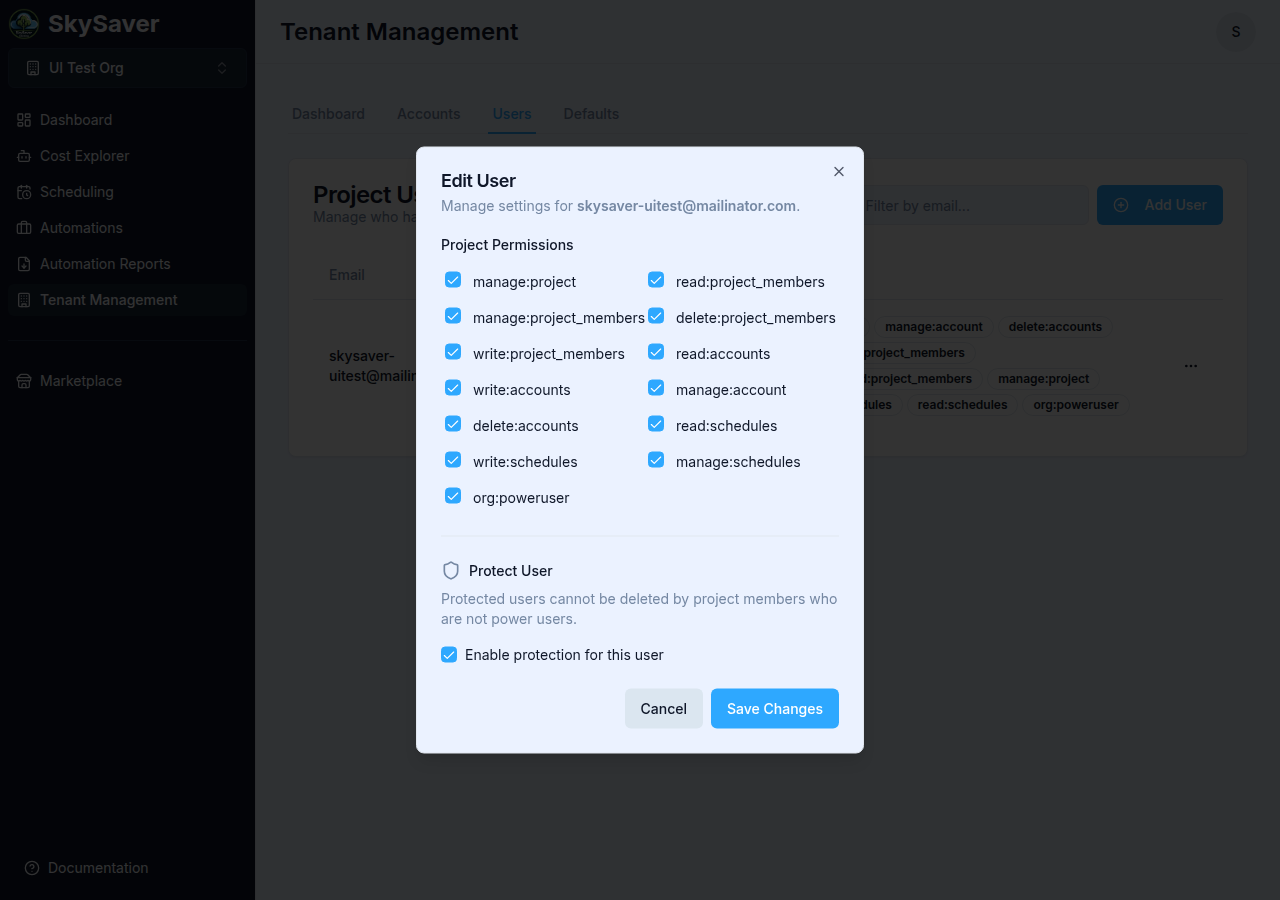
Note: SkySaver does not have a role abstraction in the UI. Permissions are assigned as individual scope checkboxes in the Edit User dialog. The “Admin / Member / Viewer” concepts below are logical groupings to help guide what to assign — they are not roles you select from a dropdown.
Conceptual Permission Levels
These groupings describe common access patterns:
| Level | Description | Use Case |
|---|---|---|
| Admin | Full access to all features (or assign org:poweruser) | Project administrators |
| Member | Standard access with modifications | Team members |
| Viewer | Read-only access | Stakeholders, auditors |
Assigning Admin Role
- Navigate to Tenant Management > Users tab
- Click the ⋯ menu on the user and select Edit User
- Check org:poweruser in the permissions list
- Click Save Changes
The org:poweruser scope grants unrestricted access to all project resources and settings — equivalent to full admin. Assign it only to users who genuinely need project-wide administrative control. There is no visual distinction for this scope in the UI beyond its checkbox label.
Available Scopes
The following 13 scopes are available in the Edit User dialog:
Account Permissions
| Scope | Description |
|---|---|
read:accounts | View accounts and their details |
write:accounts | Add new accounts to the project |
manage:account | Modify account attributes |
delete:accounts | Remove accounts from the project |
Member Permissions
| Scope | Description |
|---|---|
read:project_members | View project members |
write:project_members | Add new members |
manage:project_members | Modify member attributes |
delete:project_members | Remove members |
Project Permissions
| Scope | Description |
|---|---|
manage:project | Modify project settings |
Schedule Permissions
| Scope | Description |
|---|---|
read:schedules | View schedules |
write:schedules | Create new schedules |
manage:schedules | Modify existing schedules |
Organization Permissions
| Scope | Description |
|---|---|
org:poweruser | Full admin access — see warning above |
Scope Categories
Understanding scope naming:
| Prefix | Meaning |
|---|---|
read: | View/list resources |
write: | Create new resources |
manage: | Modify existing resources |
delete: | Remove resources |
org: | Organization-level capabilities |
Assigning Permissions
Step 1: Open Edit User
- Navigate to Tenant Management and click the Users tab
- Click the ⋯ menu on the user row and select Edit User

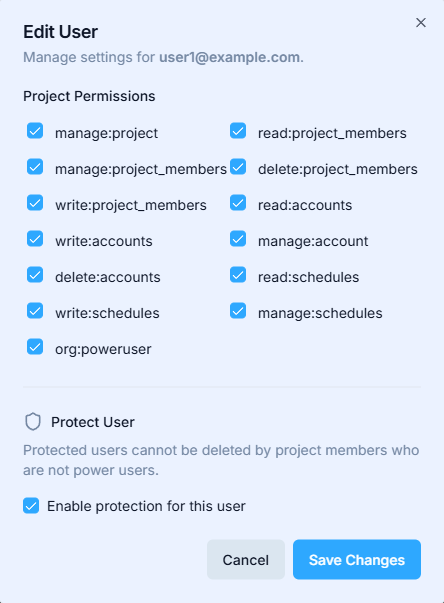
Step 2: Select Scopes
- Check desired permission scopes
- Uncheck any scopes to remove them
Step 3: Save
Click Save Changes to apply.
Common Permission Sets
Read-Only User (Viewer)
For users who only need to view data:
read:accounts
read:project_members
read:project
read:schedules
Schedule Manager
For users who manage schedules but not accounts:
read:accounts
read:project
read:schedules
write:schedules
manage:schedules
Account Manager
For users who manage AWS accounts:
read:accounts
write:accounts
manage:account
read:project
Full Access (Admin)
All scopes, or use the org:poweruser scope.
New User Defaults
New users start with no permissions:
- User is added to project
- User has blank access
- Admin must assign scopes
- User can then access features
Important: Always assign permissions after adding users.
Auditing Permissions
Regularly review user permissions:
- Navigate to Tenant Management > Users tab
- Review each user’s scopes
- Verify access is still appropriate
- Remove unused permissions
Security Best Practices
- Least privilege - Grant only what’s needed
- Regular audits - Review permissions quarterly
- Prompt removal - Remove access when users leave
- Limit admins - Keep admin count minimal
- Document - Record why users have specific access
Troubleshooting
| Issue | Cause | Solution |
|---|---|---|
| Can’t view accounts | Missing read:accounts | Add the scope |
| Can’t create schedules | Missing write:schedules | Add the scope |
| Can’t edit settings | Missing manage: scope | Add appropriate manage scope |
| Access denied | Multiple missing scopes | Review required scopes |
Related Topics
- Managing Users - User management
- Project Defaults - Project configuration
- Key Concepts - Understanding permissions