Manage Members
After adding members, you need to assign them permissions. Every member starts out with no access in the project.
Managing Members
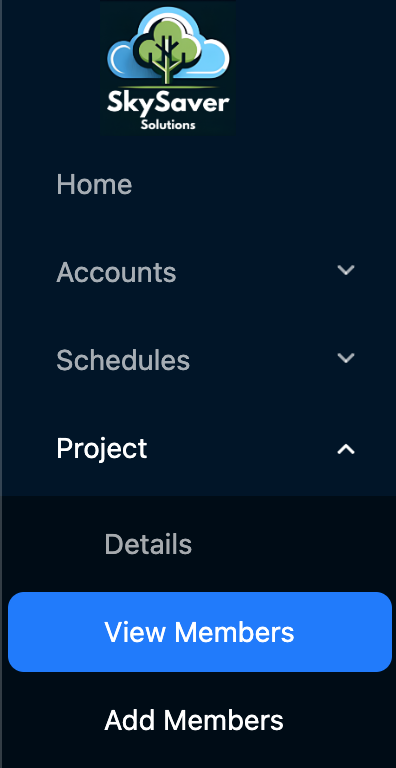
First navigate to the view members page.
New users have no permissions, and they may look like the following

Click the Edit button.
After clicking the Edit button you’ll see the following modal.
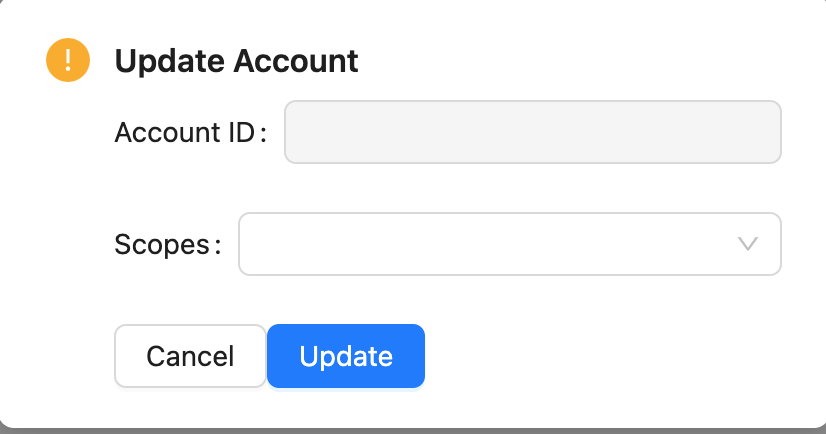
Note: If you want to add admin privileges to a user, click on
Scopesand selectGive Admin Permissions
You can click on the Scopes dropdown list and add permissions to the user. Below are the list of scopes and what they do:
read:accountsviewing the accounts associated with a project and their detailswrite:accountsadding new accounts to the projectmanage:accountmodifying the attributes of an account tied to the projectdelete:accountsremoving accounts from the projectwrite:project_membersadding new members to the projectdelete:project_membersdeleting members from the projectmanage:project_membersmodifying attributes of project membersread:project_membersview details of project membersread:projectview project detailsmanage:projectmodify project detailsread:schedulesview schedules for the projectwrite:schedulesadd new schedules to the projectmanage:schedulesmodify schedules already created for the project